Smart Home Without A Hub
A “hub” usually means a dedicated box that coordinates devices, stores some settings, and sometimes offers local control. You can skip that box when your devices either talk directly to your phone app over Wi‑Fi, or they use a standard that your existing controller already supports. The tradeoff shows up in reliability, privacy, and how much you can automate without cloud accounts.
For example, a Wi‑Fi smart plug can work with a phone app and a home router, with no hub in the middle. A Zigbee motion sensor often needs a Zigbee coordinator; some people use a hub, but others use a USB coordinator paired with a computer or a supported smart display. If you want fewer subscriptions, you’ll care about whether the device can run routines locally or depends on a vendor cloud.
One practical constraint: many “hub-free” setups still rely on a phone app for configuration. After setup, the device may keep working, but automations can fail when the vendor cloud is slow or blocked. That behavior varies by brand and firmware, so you’ll want to test with a planned offline scenario.
Main Problems And Pain Points
People often buy devices that look compatible on a product page, then discover the compatibility depends on a specific app, region, or controller version. A Zigbee bulb might pair fine with one coordinator and refuse pairing with another because of device profiles and firmware quirks. Even with Matter, some devices require a controller to be present for commissioning and ongoing control.
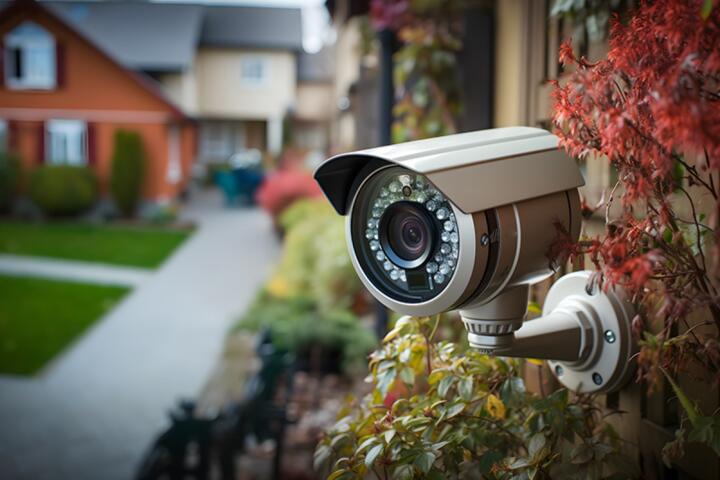
Another pain point is hidden dependency on a cloud account. A Wi‑Fi camera might stream locally to your phone app, yet still require the vendor service for motion alerts. If you later change passwords or disable network access, the device can become “offline” even while it still powers on.
Wireless interference also causes confusing symptoms. A 2.4 GHz Wi‑Fi smart plug can drop off when the router is overloaded or when neighboring networks overlap channels. Zigbee and Z-Wave avoid Wi‑Fi congestion, but they introduce their own issues: Zigbee needs a coordinator and a mesh of powered devices, while Z-Wave needs a compatible controller and a stable mesh.
Finally, automation expectations get mismatched. A device might support schedules, but not cross-device triggers without a controller. You can set a schedule for lights, yet you may not get “turn on hallway light when motion is detected” unless the system supports event-based automations.
Solutions And Advice
Start With Your Controller
Pick one place to manage devices. If you already own a smart speaker or smart display that supports Matter and local control, it can act as a controller for many Matter devices. If you do not, you can use a low-cost coordinator approach: a USB Zigbee coordinator paired with a home computer or a small always-on device.
For Zigbee, the coordinator matters more than the brand of the sensor. A common pattern is: coordinator + compatible Zigbee software + device pairing. People often skip the “software layer” details and then wonder why pairing fails; for example, a coordinator that works with one firmware stack might not work with another. I’ve seen setups stall because the coordinator was listed as “Zigbee compatible” but not confirmed for the specific software version (I once checked a guide referencing Zigbee2MQTT v1.36.0, and the coordinator chipset list mattered).
For Wi‑Fi devices, the “controller” is usually the vendor app. That can be fine for simple tasks like turning on a plug at 7:30 AM, but it limits cross-device automations unless the vendor supports them or you add a separate automation platform later.
Choose Protocols That Fit
Match the protocol to the room and the device type. Wi‑Fi works well for devices with power and bandwidth needs, like cameras and some smart displays. Zigbee fits battery sensors and switches because it uses a low-power mesh, but it needs a coordinator and enough powered Zigbee devices to carry messages.
Z-Wave can also work for sensors and switches, with a mature ecosystem in many regions. It requires a Z-Wave controller, and the mesh depends on powered nodes. If you want to avoid a dedicated hub, you can still use a controller built into a compatible automation system or a USB controller, but you’ll need to verify device compatibility lists.
Matter aims to reduce lock-in by using a common application layer. Matter devices still need a controller for commissioning and control, and some features depend on whether the controller supports local execution. When you see “Matter” on a box, check whether it is Matter-over-Wi‑Fi, Matter-over-Thread, or both, because that affects what you need at home.
Plan For Offline Behavior
Decide what must keep working when the internet link drops. Many Wi‑Fi devices keep basic on/off state locally, but automations that depend on cloud triggers can stop. Zigbee and Z-Wave automations can keep running locally when your automation platform runs locally, yet they still depend on the coordinator staying powered.
A practical test: after setup, unplug the WAN cable for 10 minutes and check three things—device control from your app, scheduled routines, and event-based automations. If you rely on phone notifications, expect them to fail during WAN outage unless the system has local notification handling. This test is mildly annoying, but it prevents surprises.
Also test power loss. A smart plug that reboots after an outage might return to the last state or default to off, depending on the device. You can reduce risk by choosing devices that support “restore state” and by setting safe defaults for lights and locks.
Secure The Network First
Smart home security often fails at the router level, not at the device level. Use a separate network or VLAN for IoT devices when your router supports it. If your router does not support VLANs, a guest network can still reduce exposure, though some local discovery features may break.
Turn on WPA2-AES or WPA3 for the main Wi‑Fi network, and avoid using the same password across devices. Many vendors ship with default credentials for setup; change them immediately after pairing. If a device supports firmware updates, schedule updates during a time window when you can tolerate brief downtime.
Watch for “local-only” claims that still require cloud login for basic control. Read the device documentation for whether it supports local API access or local automations. When documentation is vague, treat the device as cloud-dependent until you verify behavior during WAN outage.
Case Examples
Apartment With Wi‑Fi Plugs
An apartment renter wants timed lighting and a simple routine for a desk lamp. They buy Wi‑Fi smart plugs and a Wi‑Fi smart bulb, then set schedules inside the vendor apps. They avoid a hub and keep the setup limited to on/off and schedules.
After installation, they test a WAN outage by disabling internet for 15 minutes. The plugs still switch on at the scheduled times, but motion-triggered notifications from a Wi‑Fi sensor stop because the vendor service is unreachable. The renter decides that notifications are optional and keeps the routine local enough for daily use.
They also notice that the phone app sometimes takes 5–10 seconds longer to reflect state changes when the router is busy. That delay does not break the schedule, but it affects manual control expectations.
House With Zigbee Sensors
A homeowner wants door and motion sensors without a dedicated hub box. They use a USB Zigbee coordinator connected to a small always-on computer and run compatible local automation software. They pair Zigbee motion sensors, door contacts, and a few plug-in Zigbee outlets to strengthen the mesh.
During setup, they follow the pairing flow and confirm that each device joins the mesh. A door sensor pairs quickly, but a motion sensor takes longer because it requires a specific pairing mode window; the homeowner sets a reminder for the 60–120 second window described in the device manual.
They test offline behavior by cutting internet for 20 minutes. Local automations still trigger, and the system logs events locally. Remote access from outside the home fails, which they expected, and they plan to use local alerts like a siren or light pattern for critical events.
Comparison Checklist
| Decision Area | Hub-Free Wi‑Fi | Zigbee With Coordinator | Matter Controller Needed |
|---|---|---|---|
| Setup effort | Low for single-device apps | Medium due to coordinator + software | Medium; commissioning depends on controller |
| Offline control | Often mixed; verify per device | Often good for local automations | Depends on controller local execution |
| Cross-device automations | Limited unless vendor supports it | Strong when automation runs locally | Possible when controller supports rules |
| Network impact | Can add Wi‑Fi load | Uses Zigbee mesh; less Wi‑Fi traffic | Varies by Matter transport |
| Vendor lock-in | Higher with app-only devices | Lower if coordinator software is compatible | Lower when Matter is fully supported |
Use this step-by-step checklist before buying more devices:
- List the exact automations you want: schedules, motion triggers, door alerts, or energy monitoring.
- Pick the protocol per device type: Wi‑Fi for bandwidth-heavy devices, Zigbee/Z-Wave for sensors and switches, Matter when you want cross-vendor compatibility.
- Confirm what runs locally. Look for documentation that states local control or local automations, then verify with a WAN outage test.
- Check controller requirements. Zigbee needs a coordinator; Matter needs a controller; Z-Wave needs a compatible controller.
- Plan for mesh health. For Zigbee, add powered devices in rooms where sensors struggle to reach the coordinator.
- Lock down the network. Use WPA2-AES/WPA3, separate IoT traffic when possible, and change default credentials.
Common Mistakes
Buying devices based on “works with” marketing without checking the exact controller or app version causes most frustration. A Zigbee sensor might pair, but it may not expose the same attributes in every coordinator software stack. That mismatch shows up later when automations fail to read battery level or occupancy state.
Skipping offline testing leads to false confidence. If your routines depend on cloud triggers, they can stop during outages or when a vendor changes an API. A short planned test prevents the “it worked yesterday” problem.
Overloading Wi‑Fi with many chatty devices can also create symptoms that look like device failure. If your router has limited CPU or memory, discovery and state polling can slow down. In one setup I reviewed, the user had 18 Wi‑Fi devices and a crowded 2.4 GHz band; switching the router to a less congested channel reduced dropouts.
Another mistake is ignoring firmware update behavior. Some devices update silently, others require a reboot, and some pause automations during update windows. If you rely on a lock or a safety-related light routine, schedule updates when you can tolerate temporary interruptions.
Finally, people underestimate the cost of “no hub.” You might avoid a $60–$200 hub, but you may pay in time for coordinator setup, troubleshooting, and ongoing maintenance of the automation platform. That cost is real even when the hardware is cheap.
FAQ
Do Wi‑Fi smart devices work without internet?
Many devices keep their last state and may still respond to local commands through the vendor app, but cloud-dependent features like notifications and remote access often stop. Test by disconnecting WAN and checking both manual control and scheduled routines for each device model.
What replaces a hub for Zigbee?
A Zigbee coordinator replaces the hub’s role. It can be a dedicated hub box or a USB coordinator connected to an always-on controller. The coordinator must be compatible with the Zigbee software you plan to run.
Does Matter remove the need for a controller?
Matter devices still require a controller for commissioning and ongoing control in most setups. Some controllers can run locally, but the exact behavior depends on the controller device and the Matter transport used.
Will offline automations work with a hub-free setup?
Offline automations work when the automation logic runs locally on your network and does not depend on cloud triggers. Wi‑Fi app-only routines can be mixed, while Zigbee/Z-Wave automations often work better when your automation platform runs locally.
How do I reduce security risks without a hub?
Use strong Wi‑Fi security (WPA2-AES or WPA3), change default credentials, keep firmware updated, and isolate IoT devices on a separate network or VLAN when your router supports it. Also verify whether the device requires cloud login for basic control.
Author's Insight
Skipping an expensive hub usually means shifting coordination work elsewhere: into vendor apps for Wi‑Fi devices, into a Zigbee/Z-Wave coordinator for mesh devices, or into a Matter controller you already own. The most reliable “hub-free” setups treat offline behavior as a testable requirement, not a hope. Network security still matters because many smart devices expose cloud endpoints even when local control works. A practical approach is to start with one room, verify pairing and offline behavior for each device model, then expand once the automation patterns match your expectations.
Key Takeaways
- Hub-free does not mean controller-free; it means the controller role moves to an app, a coordinator, or an existing device.
- Protocol choice drives the setup: Wi‑Fi trades simplicity for more cloud dependence, while Zigbee/Z-Wave trades extra setup for better local automation potential.
- Verify offline behavior per device model using a planned WAN outage test.
- Secure the network early with strong Wi‑Fi settings and IoT isolation when possible.
- Plan for maintenance time when you replace a hub with a coordinator and local automation software.