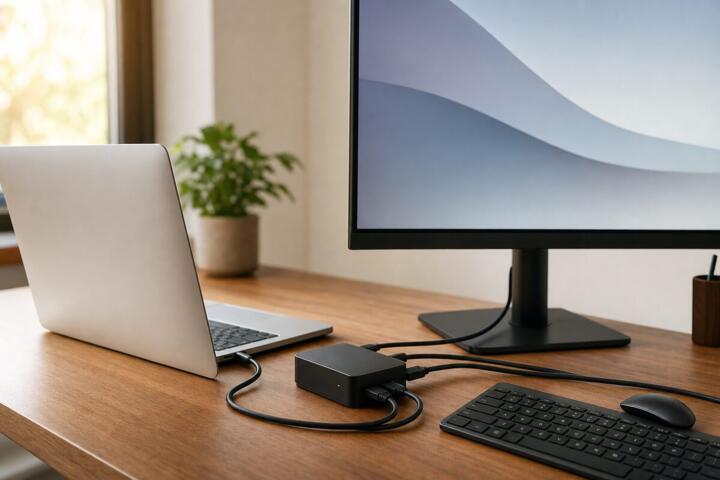
Docking Station Basics
A docking station is a hardware hub that connects to your laptop through a single cable and then exposes a set of ports and features at your desk. The practical change is that you plug in peripherals once—monitor, keyboard, mouse, Ethernet, speakers—and the laptop becomes the “brains” behind that setup. Many docks also charge the laptop through the same connection, which reduces cable clutter and desk power strips.
Not every dock works the same way. Some docks are “port expanders” that rely on USB data lanes, while others use Thunderbolt to carry display signals and high-speed storage traffic. If you have ever plugged a dock into a laptop and gotten only one monitor, the cause usually sits in the laptop’s supported display modes or the dock’s bandwidth, not in your monitor settings.
As a concrete example, a typical desk setup might include two monitors, a wired network connection, and a USB hub for a webcam and external drive. A dock can also add SD card readers, audio jacks, and extra USB-A ports. On my desk, I keep a USB-C dock labeled “WD19” style rather than guessing, because the exact model determines whether dual-display works with my laptop’s graphics.
Main Problems And Pain Points
The most common misunderstanding is treating “USB-C” as a guarantee of everything a dock advertises. USB-C is a physical connector; the capabilities depend on what the laptop exposes over that connector. Some laptops route video over USB-C, some route it only through Thunderbolt, and some support only one external display even when the dock has multiple HDMI or DisplayPort outputs.
Another pain point is power delivery mismatch. A dock may advertise 90W or 130W charging, but your laptop might require a specific wattage range or a particular charging profile. If the dock provides less power than the laptop draws under load, the laptop can still run, yet battery percentage may drift downward. That behavior feels like a “bad dock,” but it is often a power budget issue.
Display behavior can also be confusing. Many docks support two monitors, but only one may run at full refresh rate or resolution depending on the connection type and the laptop’s GPU configuration. When a dock uses DisplayLink technology, it can drive additional displays through software compression; that works on many systems, yet it can add CPU/GPU overhead and may not match the latency expectations of fast gaming.
Networking is another dependency people overlook. Some docks include Ethernet, but the laptop still needs a driver and a supported network mode. If you switch between Wi‑Fi and dock Ethernet, you may see brief connectivity drops while the OS reorders network priorities. That is normal behavior for many operating systems, but it can look like a dock failure.
Solutions And Advice
Check Laptop Port Capabilities
Start with the laptop’s documentation for the USB-C/Thunderbolt port. Look for terms like “supports DisplayPort Alt Mode,” “Thunderbolt 3/4,” or “supports dual external displays.” If the laptop lists only one external display over USB-C, a dock with multiple video outputs will not magically change that limit.
Then match the dock’s video outputs to your monitor needs. HDMI 2.0 and DisplayPort 1.4 support different maximum resolutions and refresh rates. If you want 4K at 60Hz on two screens, you need enough bandwidth from the laptop-to-dock link and the dock’s internal controller to carry those signals.
As a small aside: I once tested a dock on a laptop with a Thunderbolt 3 port and a second monitor stayed at 30Hz until I switched the monitor input from “HDMI” to “DisplayPort.” The dock was fine; the monitor’s input mode was the limiter.
Match Power Delivery To Load
Compare the dock’s power delivery rating with your laptop’s charger wattage. If your laptop ships with a 100W adapter, a 65W dock may still charge at idle but struggle during heavy workloads like video export or large software builds. A practical outcome to expect: with a lower-watt dock, you may see slower charging or a gradual battery decline during sustained CPU/GPU use.
Also check whether the dock supports charging while connected to peripherals. Some docks can charge and run multiple USB devices, but others throttle power when the laptop draws more than the dock can supply. If you use a high-power USB device—external SSD enclosures with bus power, for example—power budgeting becomes tighter.
On Windows, you can watch this behavior in Task Manager and battery status; on macOS, you can observe charging indicators and system power behavior. If you see “not charging” while the laptop is plugged into the dock, stop and verify the dock’s supported wattage and the laptop’s charging requirements.
Plan For Display And Audio
Decide how you want external displays to work. If your laptop supports native display over Thunderbolt/USB-C, you typically get lower overhead and more predictable refresh rates. If the dock uses DisplayLink to add extra monitors, expect software drivers and different behavior under sleep/wake cycles.
For audio, confirm whether the dock routes sound through a standard audio device or through HDMI audio. HDMI audio can change output devices automatically, which sometimes causes the OS to “forget” your preferred speakers after reconnecting. A practical approach is to set the default output device in your OS sound settings and then test after docking.
If you rely on microphone input, check whether the dock exposes a separate audio capture device. Some docks provide only line-out, and some provide both playback and capture. That difference matters for calls and recordings.
Test Dock Sleep Wake And Drivers
Docking stations often behave differently across sleep, hibernate, and lid-close events. Before you commit to a dock for daily use, test: dock connected, laptop asleep, laptop wakes, monitors re-detect, and Ethernet reconnects. If the dock requires a driver (common for DisplayLink or certain Ethernet chipsets), install it from the manufacturer’s site and keep it updated.
On Windows, driver updates can change how the dock enumerates devices. On macOS, dock support depends on the dock’s class drivers and whether the dock uses standard USB audio/Ethernet. If you see repeated “USB device not recognized” messages, the dock’s cable quality and the laptop’s USB-C port health become part of the troubleshooting.
A mild frustration many people hit: the dock works perfectly until the first sleep cycle, then one monitor stays black. That pattern usually points to display handshake timing or driver state, not to a broken monitor.
Case Examples
Dual Monitors With Native Video
An office worker uses a laptop with a Thunderbolt 4 port and two monitors: one DisplayPort and one HDMI. They buy a dock with both DisplayPort and HDMI outputs and confirm in the laptop’s spec sheet that dual external displays are supported over Thunderbolt. After setup, both monitors run at 2560×1440 at 60Hz, and Ethernet connects without driver prompts.
When they close the lid, the laptop sleeps and both monitors go dark. After waking, the monitors return, but the HDMI monitor sometimes reorders as the primary display. The worker fixes this by setting display arrangement in the OS and then verifying the setting after docking.
Extra Monitor Via DisplayLink
A student has a laptop that supports only one external display over USB-C. They choose a dock that adds a second monitor using DisplayLink. The second monitor works after installing the dock’s DisplayLink software, but the student notices higher CPU usage during video playback and a slightly higher latency when dragging windows quickly.
During a long sleep, the second monitor may take longer to appear after wake. The student avoids confusion by leaving the dock connected and using the OS display detection once after wake, rather than repeatedly unplugging and replugging the dock cable.
Comparison Checklist
| What You Want | What To Verify | Common Limitation | Practical Test |
|---|---|---|---|
| Two monitors | Laptop supports dual display over the dock link type | One monitor drops refresh rate or stays disconnected | Set resolution/refresh in OS after docking |
| Fast charging | Dock wattage matches or exceeds laptop adapter | Battery drains under load | Run a heavy task for 30–60 minutes and watch battery |
| Wired Ethernet | Dock Ethernet chipset and OS driver support | Brief disconnect during network switching | Confirm link speed and stability after sleep/wake |
| Extra monitor via software | DisplayLink or similar driver-based approach | Higher CPU use and different latency | Test video playback and window dragging |
Step-by-step checklist for a low-surprise setup: confirm your laptop port type and dual-display limits; choose a dock whose charging wattage matches your laptop adapter; connect one monitor first and verify resolution/refresh; then add Ethernet and USB devices; finally test sleep/wake and audio input/output. If any step fails, stop before buying extra cables or adapters, because the dock’s link type usually determines the outcome.
Common Mistakes
People often buy a dock based on the number of ports on the box rather than the laptop’s supported display and power behavior. A dock can have four video outputs and still deliver only one usable display if the laptop link carries only one display stream.
Another mistake is ignoring the dock’s charging profile. If the dock provides less wattage than the laptop needs under load, the laptop can run but battery percentage drops. That pattern leads to frustration and unnecessary returns.
Some users assume that “it works on one monitor” means it will work on two. Dual-display issues frequently show up only after the OS reassigns display roles or after a sleep cycle. Testing both monitors at the target resolution and refresh rate catches this early.
Cable quality also matters. USB-C cables vary in data capability, and a cable that charges but limits data can break Ethernet or video. If the dock uses a single cable for everything, use the dock’s included cable or a known-good cable rated for the required data and power.
FAQ
Will A Dock Charge My Laptop?
Many docks charge through the same USB-C/Thunderbolt connection, but charging depends on dock wattage and laptop charging support. Check the dock’s power delivery rating and compare it with your laptop’s original charger wattage.
Can One Dock Support Two Monitors?
Dual monitors depend on the laptop’s supported display over the dock connection. Some docks use native video over Thunderbolt/USB-C, while others use DisplayLink-style software to add displays.
Why Does One Monitor Run At 30Hz?
Low refresh rates often come from bandwidth limits, a mismatched cable, or the monitor input mode. Verify the dock-to-laptop link type and set the monitor refresh rate in the OS after docking.
Does Docking Affect Sleep Wake?
Docking can change sleep/wake behavior because the OS must reinitialize display and network devices. Testing sleep and wake with your exact monitors and driver set helps avoid surprises.
Do I Need A Dock Driver?
Some docks work with standard USB audio and Ethernet drivers, while others require vendor software, especially for DisplayLink-based multi-monitor support. If the dock’s documentation mentions a driver, install it from the manufacturer’s site.
Author's Insight
A docking station changes the laptop’s physical connection model: one cable becomes the path for power, USB peripherals, and sometimes display and network. The most reliable way to predict behavior is to match the laptop’s port capabilities to the dock’s stated link type and display method, then test resolution, refresh rate, charging under load, and sleep/wake.
When a dock adds monitors through software display drivers, it often trades latency and CPU overhead for compatibility with laptops that lack native dual-display support. That trade-off shows up during video playback and fast window movement, so testing those tasks matters more than checking a spec sheet alone.
For troubleshooting, treat the dock as a system: cable capability, OS driver state, monitor input settings, and power delivery all interact. A stable setup usually comes from verifying each dependency in order rather than swapping random cables.
Key Takeaways
- Docking outcomes depend on the laptop’s port capabilities, not just the dock’s port count.
- Match dock charging wattage to your laptop adapter to avoid battery drain under load.
- Dual-monitor support hinges on native video over Thunderbolt/USB-C or on software display drivers like DisplayLink.
- Test sleep/wake, audio input/output, and Ethernet stability before settling on a daily routine.