Two-Factor Login For Money
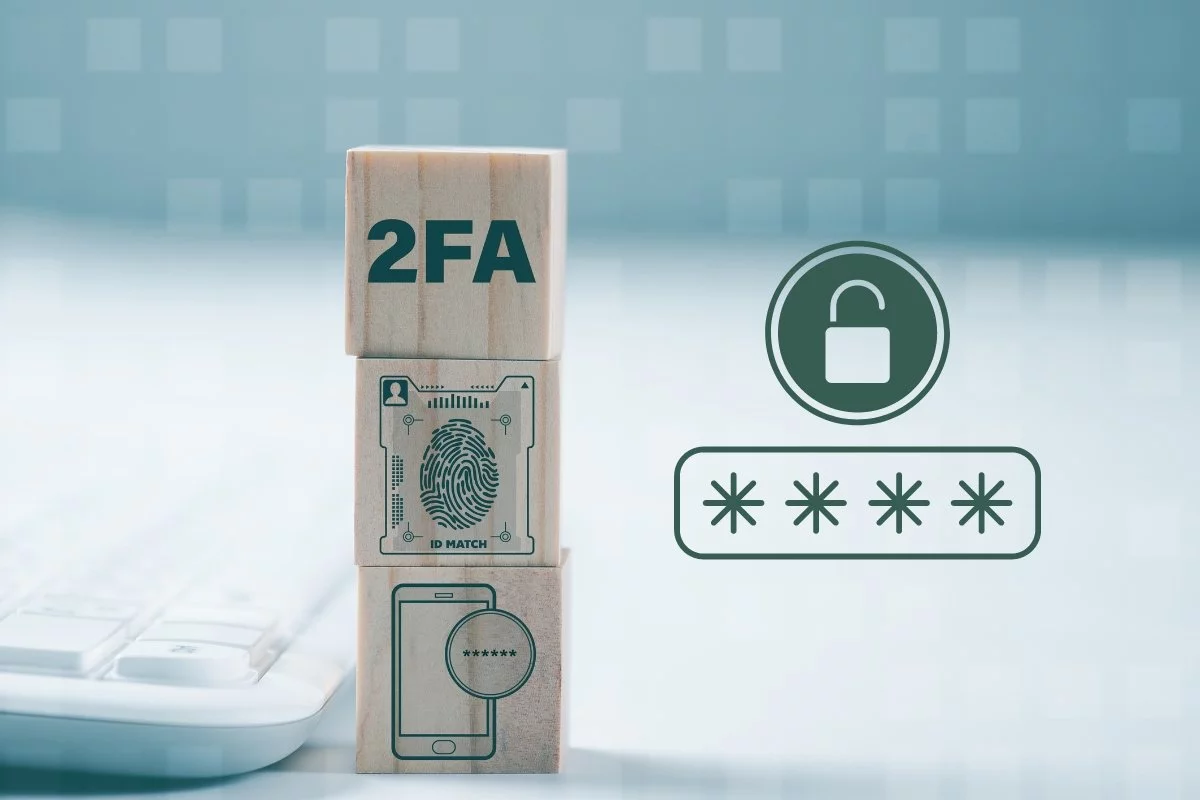
Money apps handle payment credentials, transaction history, and sometimes stored payment methods, so account access becomes a direct path to financial actions. Two-factor login adds a second proof beyond a password, typically a one-time code or a cryptographic approval from a phone or hardware key. If an attacker steals your password through phishing or reused credentials, 2FA can block the sign-in step that would otherwise open the app. The protection depends on which 2FA method the app uses and how the app handles recovery when you lose your phone.
For example, a typical scenario starts with a password leak from another site, then a login attempt on a banking app. With SMS-only codes, the attacker may still succeed if they can intercept the message or redirect your number. With authenticator apps or hardware security keys, the attacker needs access to the second factor tied to your device or key. That difference shows up in real incident reports, where account takeovers often trace back to weak second factors and overly permissive recovery flows.
What People Get Wrong
Many users treat 2FA as a checkbox rather than a system with dependencies. A money app can show “2FA enabled” while still relying on a recovery process that an attacker can manipulate. Common weak points include SMS-based codes, long-lived “remember this device” sessions, and recovery options that accept email or phone changes without strong verification.
Another frequent mistake is assuming that 2FA stops all fraud. It blocks unauthorized sign-ins, but it does not stop a user from approving a fraudulent transfer after a successful social engineering call. It also does not stop malware on the phone that reads one-time codes or triggers approvals. In practice, 2FA reduces account takeover risk, while other controls—transaction confirmation, withdrawal limits, device checks, and monitoring—reduce the damage after an attacker gains partial access.
Supporting technologies matter because they shape the threat model. Time-based one-time passwords (TOTP) rely on synchronized clocks; authenticator apps often work offline once set up. Push-based approvals depend on the app’s ability to bind the request to your device and to prevent “approve fatigue,” where repeated prompts train users to click yes. Hardware keys use public-key cryptography and challenge-response flows, which generally resist phishing better than code-based methods, though the user still needs to keep the key safe.
As a side observation, I’ve seen people enable 2FA on a money app but leave the phone number unprotected, then wonder why SMS codes arrive after a SIM swap. The app’s 2FA can’t protect you from a carrier-level takeover if the second factor is delivered to a number the attacker controls.
How To Set Up Safer 2FA
Choose Authenticator Or Key
Prefer authenticator apps that support TOTP or standards-based sign-in flows, and prefer hardware security keys when the money app supports them. If the app offers multiple methods, pick the one that does not depend on SMS delivery. A practical check: look for settings that list “Authenticator app,” “Security key,” or “Passkey,” rather than only “Text message.” In one incident I reviewed for a family member’s account (not a medical case, just a security cleanup), switching from SMS to an authenticator app reduced the number of recovery steps required after a phone change.
When you set up TOTP, store the backup codes the app generates. Many apps show backup codes once, then hide them later, which is where people get stuck. If the app supports passkeys, treat them as device-bound credentials; you still need a recovery plan for the device that holds the passkey.
Harden Recovery Paths
Recovery is where attackers often focus because it bypasses the normal sign-in flow. Review how the app handles “change phone number,” “change email,” and “forgot password.” Look for requirements like re-authentication, identity checks, or confirmation sent to the old contact method. If the app allows changing the phone number with only a password, that design weakens the value of 2FA.
Also protect the phone number itself. Carrier features like SIM-swap protections vary by provider and country, but many carriers offer account PINs or port-out locks. If your carrier supports it, set a port-out PIN and keep it separate from your app passwords. I once saw a user keep the same PIN for carrier and banking accounts; that overlap makes recovery easier for an attacker who guesses one secret.
Reduce Session And Approval Risk
Check whether the app offers “remember this device” or long session lifetimes. Shorter sessions reduce the window for an attacker who steals an unlocked phone. If the app supports step-up authentication for sensitive actions—like adding a new payee, changing bank details, or increasing transfer limits—turn it on. Step-up prompts should require the second factor again, not just a password.
For push-based 2FA, watch for prompt behavior. If you receive repeated “approve” requests you did not initiate, treat it as an active attack and deny the prompts. Approve fatigue is real: repeated prompts can train users to click yes, and the app may not block the action if you approve.
Test With A Controlled Sign-In
After enabling 2FA, test sign-in on a trusted device while you still have access to the second factor. Confirm that you can log in after restarting the phone and after reinstalling the app. If you use an authenticator app, verify that the code still works after a time change; TOTP depends on clock drift, and some phones drift more than people expect.
Record the exact steps you used to set up 2FA, including where the app stores backup codes. A small, practical outcome: if you can complete a sign-in test in under 10 minutes, you’ll likely recover faster during a real lockout. If it takes an hour, fix the setup now rather than later.
Case Examples From Real Patterns
Scenario 1: SMS code interception during password reuse. A user reused a password from a breached site. An attacker attempted sign-in on a money app and requested SMS codes. The user had 2FA set to SMS and did not have carrier port-out protections enabled. The attacker succeeded in the sign-in step and initiated a transfer before the user noticed. After the incident, the user switched to an authenticator app, enabled step-up authentication for payee changes, and reviewed recovery settings that previously allowed phone changes with weak verification.
Scenario 2: Approve fatigue after a phishing call. A user received a call claiming to be from “support” and was told to verify activity. The attacker guided the user to approve a login prompt. The user approved once, then noticed the app had opened a new session. The attacker could not complete additional actions once the app required step-up authentication for transfers. The user then changed passwords, revoked sessions, and kept 2FA prompts under tighter control by disabling “remember device” for sensitive actions.
2FA Method Comparison Checklist
| Method | What the second factor is | Main risk | Practical fit for money apps |
|---|---|---|---|
| SMS codes | Text message to your phone number | SIM swap, message interception, or carrier takeover | Use only if no stronger option exists; harden carrier recovery |
| Authenticator (TOTP) | Time-based codes from an app | Malware on the phone or clock drift | Often a better default than SMS; keep backup codes |
| Push approval | A prompt on your device | Approve fatigue and social engineering | Use when prompts are tied to device and sensitive actions require step-up |
| Security key / passkey | Cryptographic challenge-response or device credential | Loss of the key/device without recovery plan | Strong resistance to phishing; store backups and recovery options |
Step-by-step checklist for money apps:
- Open the app settings and confirm the second factor method is not limited to SMS.
- Turn on step-up authentication for actions like adding payees, changing bank details, or increasing limits.
- Disable or reduce “remember device” for sensitive actions if the app offers that control.
- Save backup codes offline and test that you can sign in using the second factor after a phone restart.
- Review recovery settings for phone number and email changes; verify they require strong checks.
- Protect the phone number with carrier-level safeguards such as port-out locks or account PINs.
- Check for session management options and revoke unknown sessions after any suspicious login.
Common Mistakes To Avoid
One mistake is enabling 2FA but leaving recovery weak. If the app lets an attacker change your phone number using only a password, the second factor becomes less meaningful. Another mistake is relying on SMS while ignoring carrier protections; a SIM swap can bypass the “second step” entirely.
People also reuse authenticator backup codes across accounts or store them in the same cloud folder as passwords. If an attacker gains access to that folder, the attacker can use backup codes to reset 2FA. A safer pattern is to store backup codes offline in a place you control, then keep a separate record of where they are.
Some users disable 2FA prompts during travel or device changes and forget to re-enable them. That creates a gap when the account is most likely to be targeted through login attempts from new locations. If you travel, plan the sign-in test before you leave and keep the second factor accessible.
Finally, users sometimes assume that “no alerts” means “no attack.” Many apps send alerts only after a successful action, not after every failed login. If you see repeated failed attempts or new devices in your account history, treat it as a signal to review sessions and change passwords.
FAQ
Does Two-Factor Stop Transfers?
Two-factor blocks unauthorized sign-ins, but transfers depend on the app’s step-up rules. If the app requires 2FA again for adding payees or confirming transfers, it reduces unauthorized movement; if not, an attacker who signs in may still attempt actions.
Is SMS 2FA Safer Than None?
SMS is safer than no second factor, but it remains vulnerable to SIM swap and message interception. If the app offers authenticator apps, passkeys, or security keys, those methods generally reduce carrier-related risk.
What If I Lose My Phone?
Use the app’s recovery options such as backup codes, a secondary email, or a registered security key. Before you lose access, test recovery once and confirm you can complete sign-in without the original phone.
Why Do I Still Get Login Prompts?
Push-based 2FA can trigger prompts for legitimate sign-ins from new devices or sessions. If prompts arrive without your action, deny them and revoke sessions; repeated prompts can indicate an active attempt.
Can Malware Bypass 2FA?
Malware on your device can sometimes capture codes or trigger approvals, especially for code entry and push approvals. Keeping the device updated and avoiding suspicious apps reduces this risk, but 2FA cannot fully protect against all malware scenarios.
Author's Insight
Two-factor login matters most for money apps because it targets the sign-in step that gates every later action. The strongest protection comes from pairing a resistant second factor (authenticator apps or security keys) with recovery settings that do not let attackers change phone numbers or emails with weak checks. Many real account takeovers trace back to SMS delivery and recovery flows rather than the password step alone.
When you evaluate an app, focus on what happens after a successful sign-in: whether sensitive actions trigger step-up authentication, whether sessions can be revoked, and whether device trust can be limited. I can’t verify a specific app’s controls from here, so readers should check the app’s security settings and test a sign-in recovery path while access still works.
Key Takeaways
- 2FA reduces account takeover risk, but recovery settings and session behavior often decide the outcome.
- Prefer authenticator apps or security keys over SMS when the app offers them.
- Turn on step-up authentication for sensitive actions like payee changes and limit increases.
- Store backup codes offline and test recovery before you need it.
- Protect the phone number with carrier-level safeguards to reduce SMS-based failure modes.