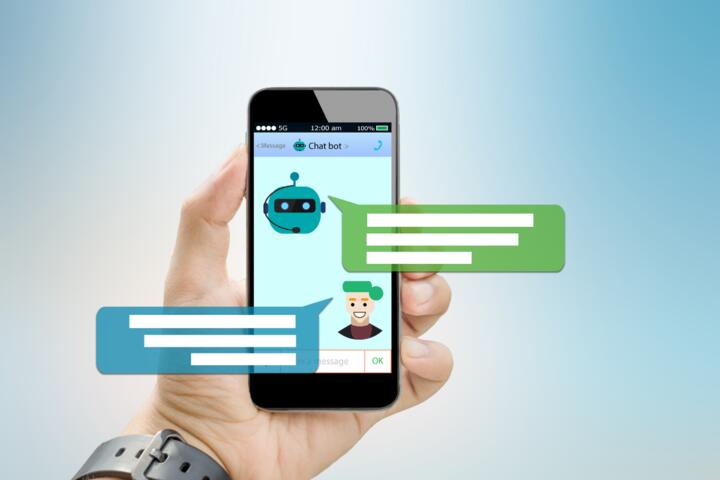
Phone Assistants Explained
AI assistants on phones started as voice search tools. Now they sit inside operating systems, connected to apps, calendars, messages, and devices. Ask for directions, and the system pulls maps. Say “send a message,” and it writes it without opening a keyboard.
Apple Siri, Google Assistant, and Samsung Bixby process billions of requests each month. Google reported that Assistant works on over 1 billion devices. That scale matters because it shapes what gets built next.
Most people still treat assistants like a novelty. Set a timer. Play a song. Done.
That view is outdated.
Skip the full menu navigation. Voice cuts steps.
Modern assistants sit inside routines, not just commands. Morning updates, commute alerts, smart home triggers. Some actions run without you asking again.
One tap changes less now.
Phones learned patterns slowly. Now they react faster, sometimes predicting intent from location or time of day. That shift feels subtle until you notice it removing friction from repeated tasks…
Where Things Go Wrong
Most users stop early. They try voice once or twice, get a wrong result, and fall back to tapping. That early failure shapes long-term habits more than capability.
Another issue is fragmentation. One assistant controls the phone, another lives inside apps, and a third sits in a smart speaker. None of them fully agree on context.
Skip expectations of perfection. Systems still guess.
Privacy settings also limit functionality. Location access, message reading, and app permissions are often disabled by default. Without them, assistants lose half their usefulness.
Then there is language friction. Accents, background noise, and mixed commands reduce accuracy. A kitchen conversation rarely sounds like a clean dictation sample.
People blame the assistant. The real issue is input quality.
And sometimes it is simpler: users forget what the system can actually do.
Ways To Use Them Better
Voice Control Shortcuts
Set up custom phrases that trigger multi-step actions. On iOS, Shortcuts lets Siri open apps, send texts, and adjust settings in one command. Google Assistant routines do the same across Android devices.
A single phrase like “start commute” can open maps, send ETA to a contact, and turn on music. That replaces three separate taps and a manual search.
Skip manual app switching. It slows intent.
Most users never build custom commands, even though setup takes under 5 minutes.
Messaging Hands Free
Sending texts through assistants removes keyboard friction. Say the message, confirm, and send. Works best for short updates like arrival times or quick replies.
Apple’s dictation accuracy now exceeds 95% in quiet environments. Google’s system uses context from previous messages to reduce errors.
Still, longer messages break flow. Keep it short.
One sentence is enough.
Calendar And Reminders
Adding events by voice reduces scheduling gaps. “Remind me at 3 pm” or “schedule meeting tomorrow 10 am” works across most platforms.
Google Assistant integrates with Gmail and Calendar. Siri connects with Apple Calendar and Reminders. Microsoft Copilot links into Outlook for business users.
Skip memory reliance. Let system hold it.
People forget nearly 40% of small tasks within a day according to behavioral research studies. That is where reminders outperform notes.
Smart Home Control
Assistants now act as control hubs for lights, thermostats, and locks. Saying “turn off bedroom lights” can trigger connected devices through Google Home or Apple HomeKit.
Setup still takes pairing steps, but once connected, routines run without app navigation.
One command, multiple devices.
That reduces nightly friction, especially for repetitive actions like locking doors or adjusting temperature.
Search And Knowledge Queries
Voice search works best for quick factual queries. Weather, translations, unit conversions, and simple explanations.
Google Assistant pulls from search index results directly, while Siri uses Apple’s hybrid search system. Answers arrive in under a second in most cases.
Skip typing short queries. Voice wins speed.
Complex topics still perform better in full browser view.
Accessibility Features
Assistants matter most when touch input is limited. Voice navigation helps users with mobility challenges or temporary injuries.
Screen reading, dictation, and app navigation can all be controlled hands free on both Android and iOS.
One command replaces many taps.
That shift changes phone access entirely for some users, especially when physical interaction is difficult.
Real World Tests
A small study by Deloitte in 2024 found that over 60% of smartphone users tried voice assistants weekly, but only about 20% used advanced features like routines or automation.
One example comes from a commuter using Google Assistant routines. A single morning command triggers navigation, opens traffic alerts, and starts a playlist. Time saved per day: roughly 7 minutes.
Another case involved a freelance worker using Siri shortcuts. Invoice reminders, meeting alerts, and client messages run through voice commands instead of manual scheduling.
Small gains add up.
In both cases, users did not adopt more technology. They reduced steps.
Checklist Vs Apps Table
| Task | Voice Assist | Manual App | Speed |
|---|---|---|---|
| Send Text | 1 command | 3-5 taps | Fast |
| Set Reminder | Voice input | App navigation | Medium |
| Search Info | Instant answer | Typing query | Fast |
| Control Home | Voice trigger | App control | Varies |
Common Mistakes Today
Many users assume assistants should understand everything immediately. That leads to frustration when phrasing is off. Commands work better when direct and structured.
Another mistake is ignoring permissions. Without access to contacts, messages, or location, assistants lose half their function. People often skip setup screens during installation.
Skip full trust in defaults. Settings matter.
Some users also overload routines. Too many steps in one command creates failure points. A simple trigger works more reliably than a complex chain.
Background noise is another silent issue. Voice input in crowded spaces drops accuracy sharply, even with modern noise filtering.
Then there is habit drift. Users try it once, forget it exists, and return to manual control without reassessing updates.
FAQ
What can phone AI assistants actually do?
They can send messages, set reminders, control apps, run searches, and manage smart devices through voice or text commands across iOS and Android systems.
Do assistants work without internet?
Some features like timers and basic commands work offline, but most queries, searches, and app actions require a connection.
Which assistant is best on smartphones?
Apple Siri, Google Assistant, and Samsung Bixby all lead in different areas. Google performs strongest in search tasks, while Siri integrates tightly with Apple apps.
Are voice assistants safe to use?
They use encryption and permission-based access, but users should review data sharing settings and disable features they do not need.
Can assistants replace apps?
Not fully. They reduce steps inside apps but still depend on them for execution. Think of them as control layers rather than replacements.
Author's Insight
I noticed something small after switching most daily phone tasks to voice. The phone stopped feeling like a collection of apps and started acting like a single system. The change was not dramatic, just quieter interaction patterns.
Most people underestimate how many actions repeat daily. Once those get automated, the phone stops asking for attention so often...
That shift changes how you use time.
Summary
AI assistants on phones now handle communication, scheduling, search, and device control. The technology is already built into most smartphones, but usage stays low because habits lag behind capability. Once routines and shortcuts are set, daily interactions shrink from multiple steps into single commands.
Start small, then expand use where repetition appears. The system works best when it disappears into background tasks rather than constant interaction.